
This section lets you view system users, create employee groups, and assign group managers.
It contains four tabs:
- Active employees — users whose activity statistics are currently collected.
- Inactive employees — registered users whose statistics are not currently collected.
- Employee groups — organize employees into teams or departments, such as Accounting or Marketing.
- Group managers — employees who can review the activity of users in assigned groups.
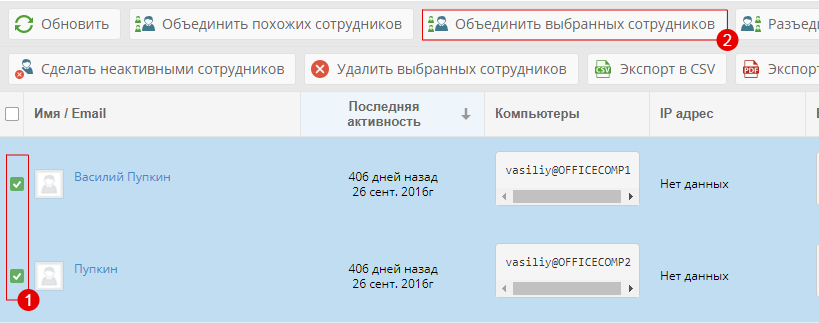
An employee is a person working under a specific login on a particular computer. For example, an employee using the login vasiliy on OFFICECOMP1 may be detected as a new user after moving to OFFICECOMP2.
Merge duplicate employee records
- To find records with similar login names, select the required user and click Merge similar
 . Select the records to merge and save. Their statistics will then be displayed as one employee.
 - To merge records manually, select the required users and click Merge selected. If the page does not show every user, display the full list first.
To separate previously merged records, select the employee and click  .
.
Edit employee details
By default, an employee is named after the computer login. You can rename the employee and add an email address for automatic notifications. Double-click the user, or click  next to the employee’s name or login.