
The Embeddable tab allows users, groups and group managers to manage.
Next tab contains four subcategories:
- active coworkers;
- active coworkers;
- groups;
- managers;
Let’s look at each subcategory to see what it might be useful for.
Active Workers
This subcategory contains all the employees under the monitoring. The number of tracking employees cannot exceed the number of cards you acquired.
Go to SectionOfficers– Active employees:
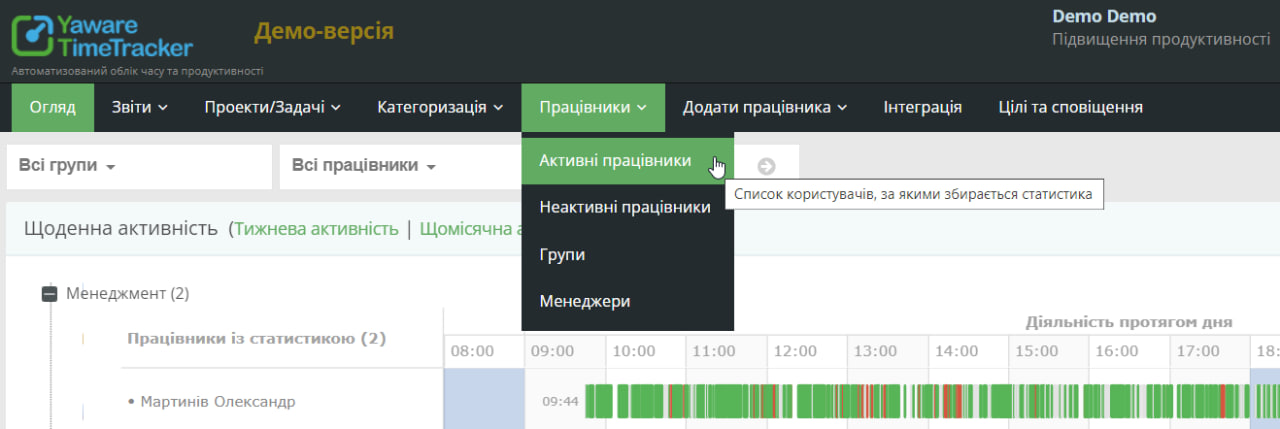
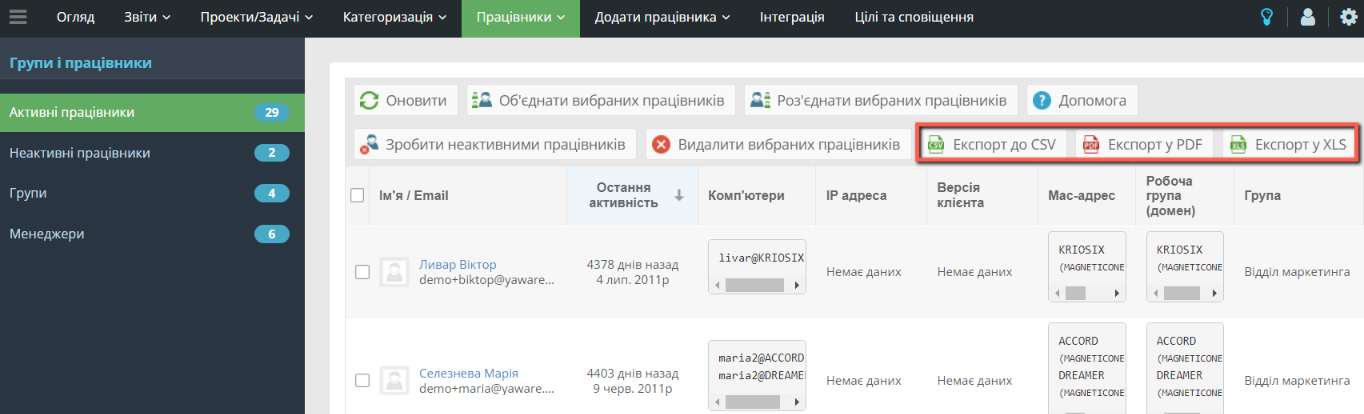
As you can see, there are 29 active workers, & ie; employees who are monitoring. The first thing you can do is combine employees.
Suppose John Johnson is working on a few computers. In all cases on all computers, he will be recognized as a new user, & ie; at each computer, tracking will start at 0.0 minutes. In order to summarize the time per computer, you need to merge all these accounts into one.
You can press the button for this.“Merge the selected workers”:
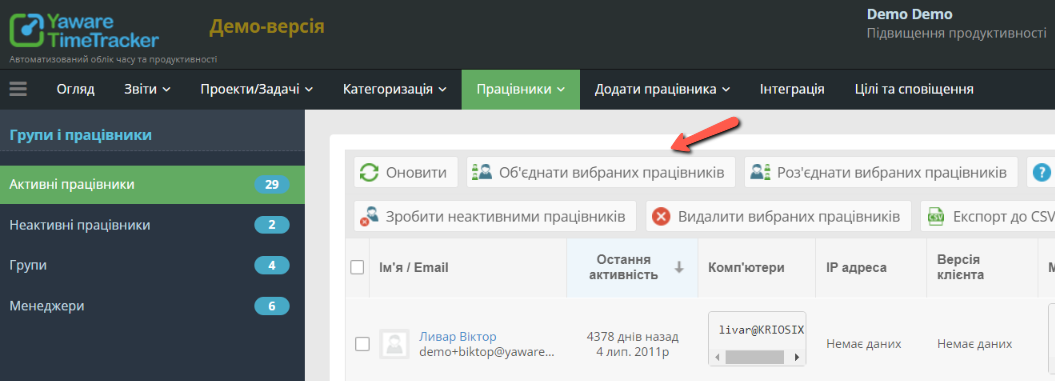 In that case, Yaware.TimeTracker will look for similar names of computers and connect them together.
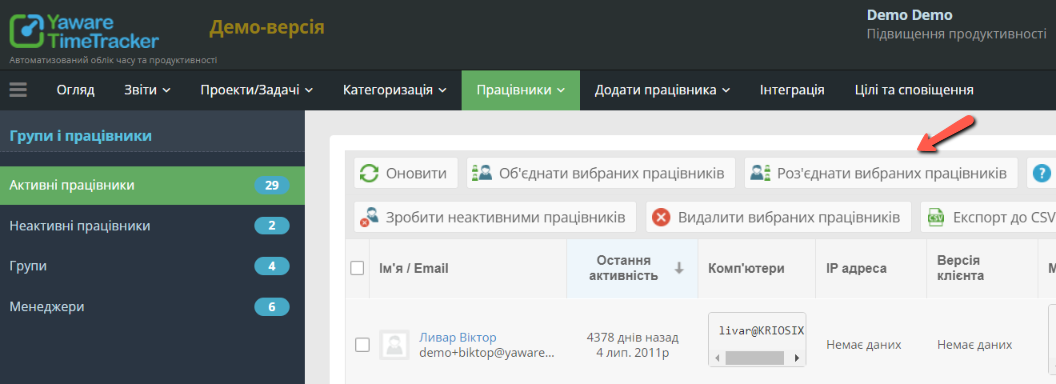
And if you need to disconnect the accounts, just press“Disconnect the selected workers”:
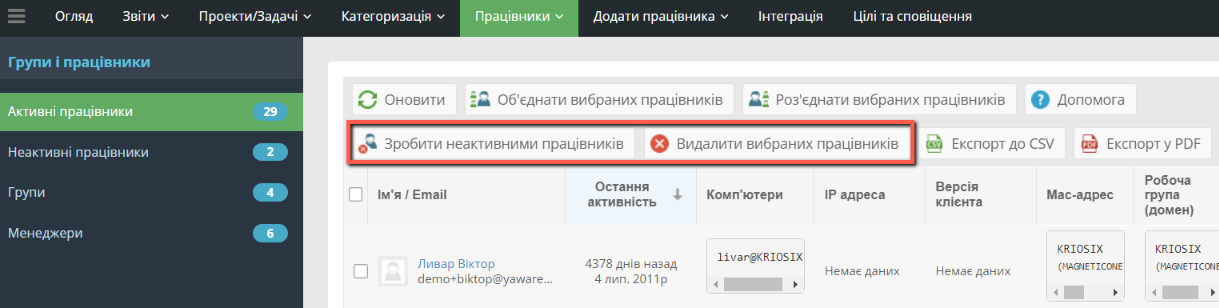
 The next thing you can do in this subcategory is deactivate and delete employees.
If you decide to deactivate a colleague, his work statistics will no longer be collected, so you’re actually stopping monitoring for a while.
If you decide to remove a colleague, all the previous statistics will be deleted. So if you want to continue monitoring this user, you have to add it back to the system:
 When necessary, you can export a list of users to XLS, CSV or PDF:
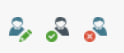
 Each user can see the following icons:
 & nbsp;
This icon allows you to edit information about the employee. You can edit the name of the e-mail, the group belonging to the employee. You can also specify the employee’s salary and load his photo.
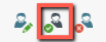 This spark allows you to quickly make a member of the group manager. Simply select the group that the employee has access to, allowed partitions and email-reports frequency.
 This spark allows you to deactivate the employee account.
& nbsp;
Inactive Workers
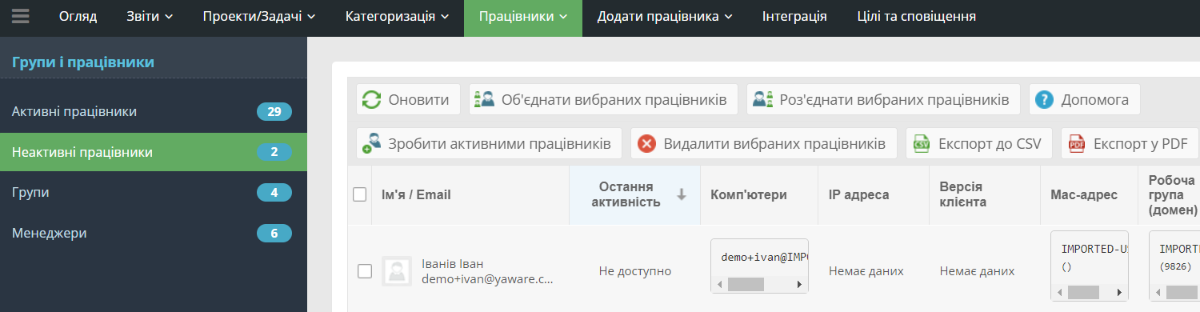 If you exceeded the user limit, all new employees will automatically become inactive, which means they will not be tracked.
In order to make them active, you need to buy additional licenses.
All the same instructions are available in the section above.
Groups
In this section you can play the structure of the company to analyze the report faster.
You can create as many groups as you want.
To add a new group click on the buttonAdd New Group:
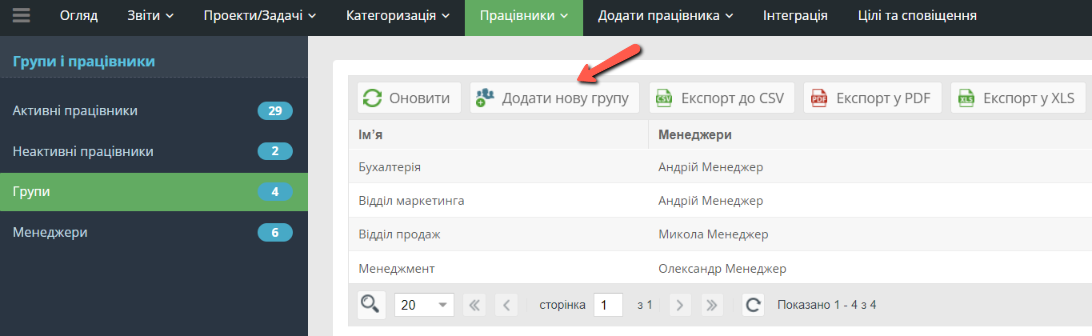 Then just type in the group name, specify whether it should be the root group or group, and which users should include it.
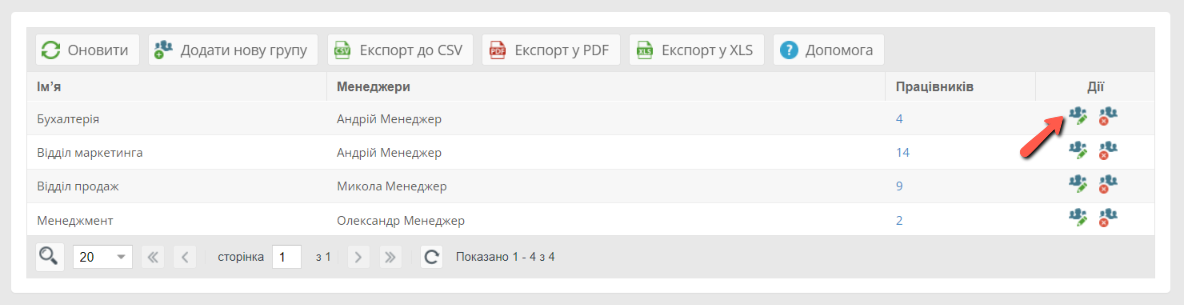
By clicking on the next item, you can edit group information:
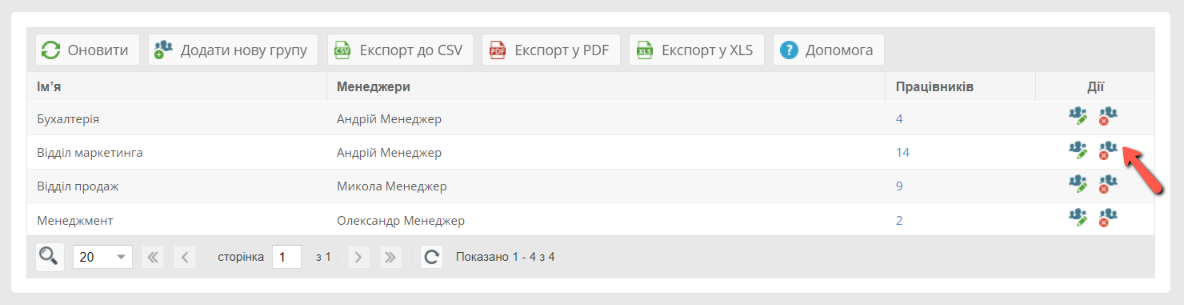
 When you click the next item, you can remove the group:
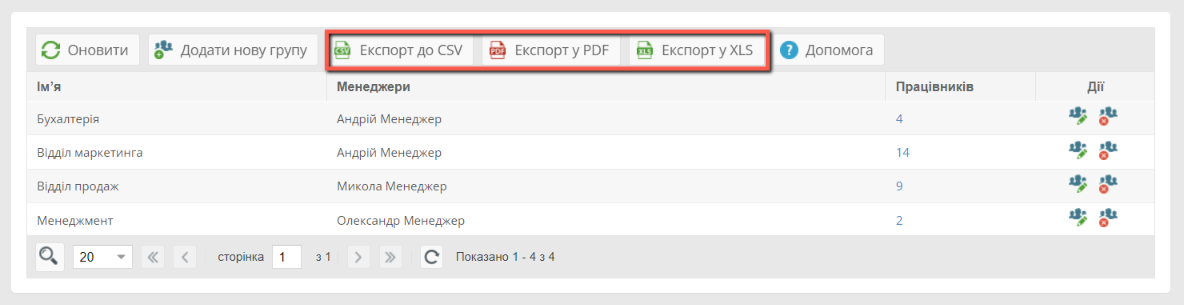
 And of course you can export all data to XLS, CSV and PDF:
Management
In this section you can assign managers and edit information about existing ones.
To add a new manager, click on the appropriate button:
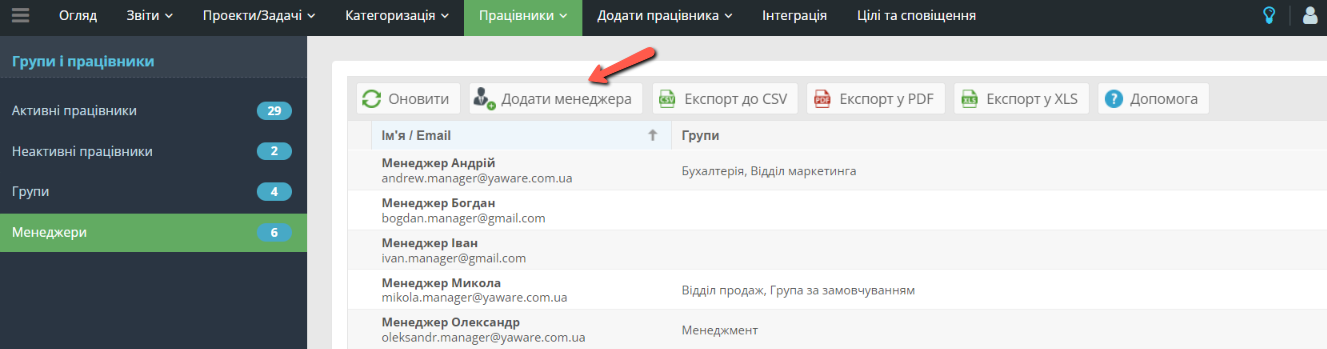 Specify the name and surname, email, allowed by groups and sections.
In front of each manager you can see the following icons:
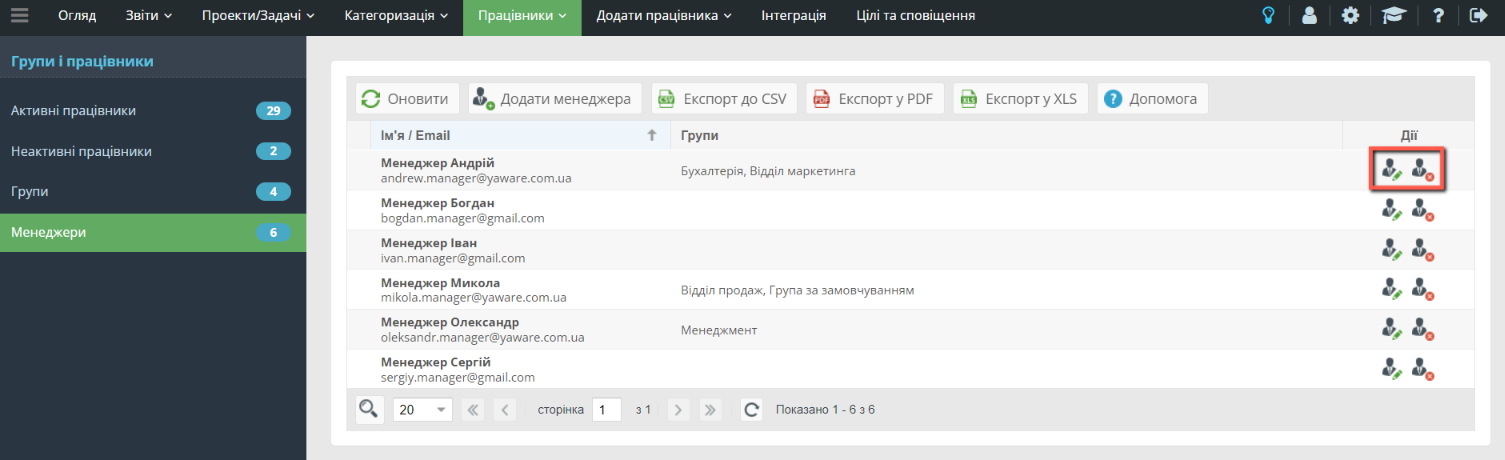 With the first icon you can edit the manager information and edit it / available to the group. By pressing the second icon, you remove the manager.
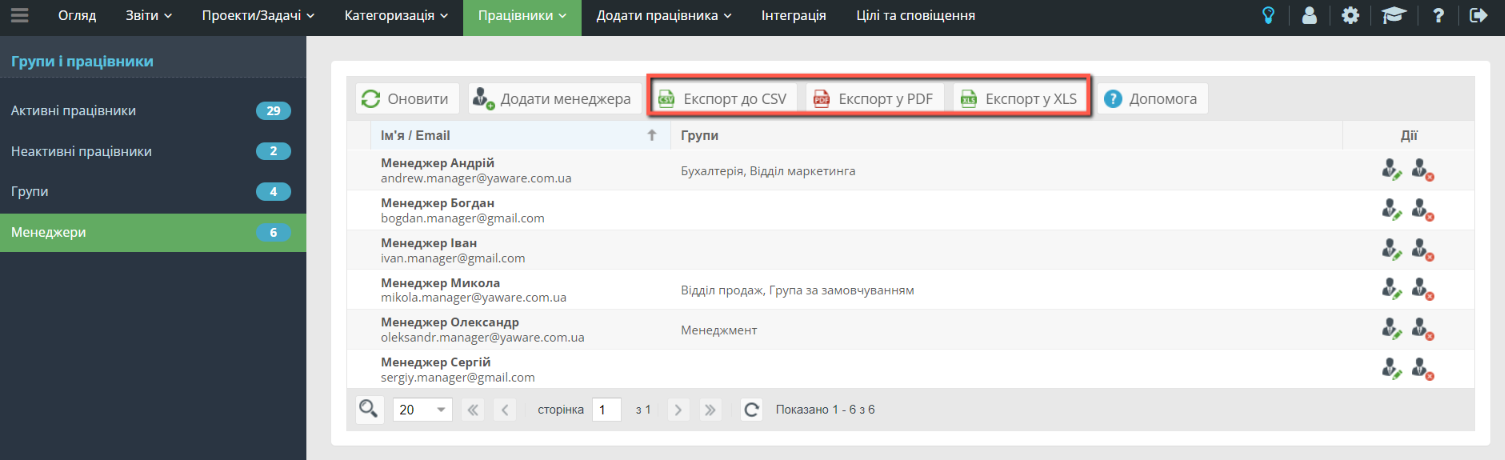
And of course, you can export data to CSV, XLS and PDF:
 This is how you manage your users in Yaware.TimeTracker.