
If you’re a fellow,
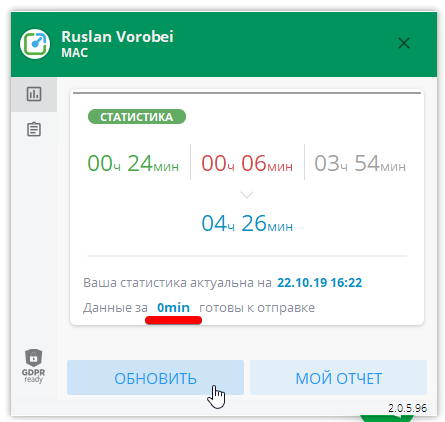
Yaware client installed on your computer. You can look at the statistics of your work by clicking on the Yaware icon in the system track.
Blue is the amount of time that data is sent to the server and will later be added to the total work time.
It looks like this:
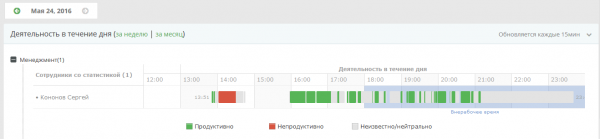
 You can also click on the Statistics button to see a detailed report. Data starts gathering as soon as you get to work:
 & nbsp;
If you’re the leader:
Users installed by Yawaree-client will appear in your profile within 15 minutes after the service installation. In this time, the employees’ work statistics will be collected on their computers and will later automatically be found in your account.
Once users appear in your profile, you can:
1. Group employees on the divisions and subsections of your company.
2. Assign responsible managers to:
- view reports about working members;
- categorize plugins;
- Specify productivity to use plugins for single employees and groups;
- get ready reports about personal data analysis.
3. Distribute resources per category productive, neutral, non-productive for staff and groups depending on whether you need to use those or other resources according to working duties.
4. Whether to include / disable the cutter screen and webcam pictures.
5. Configure the report graph for the productivity of employees on the computer.