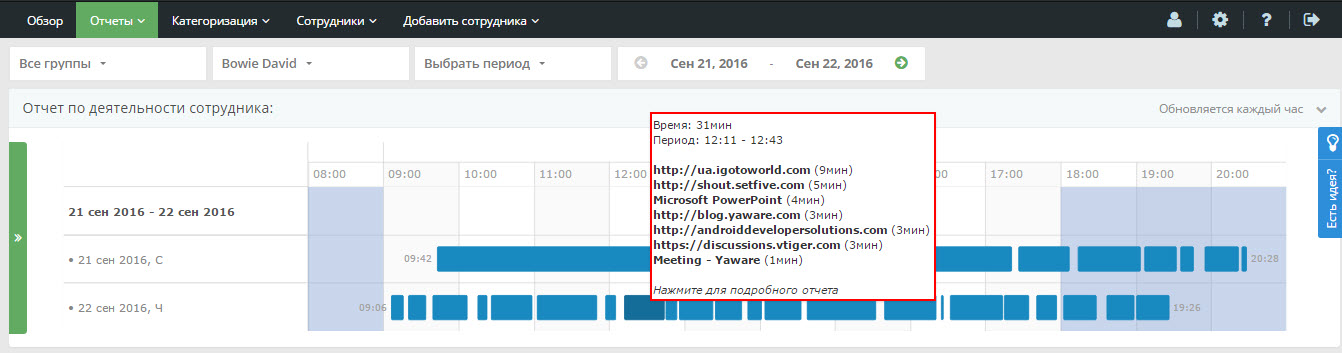
The report shows what the employee was doing during the day, for example, drawing up a report, communicating with clients, negotiating terms of cooperation, and so on.
Before you can start working with a report, you need to configure the collection of statistics for it. To do this, you need to go to the “Settings” section and select the item “Employee employment by activities”. You will see the form: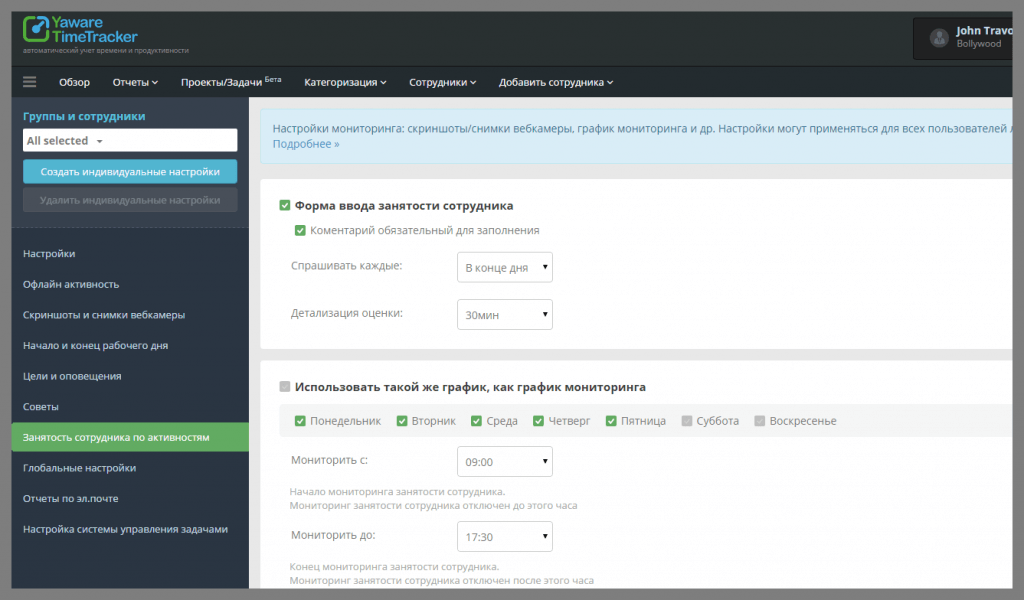
- “Ask every” – it should be specified how often the system will ask the employee what he has been doing for the last N minutes.
- “Schedule every” – specify the time intervals at which the employee should report (for example, every 15 minutes, every half hour).
To add an activity type, click on “Add Activity”. A form will appear in which you need to specify the name of the activity, determine its performance and fill in a hint for the employee so that he knows what information to enter. The type of activity can be any, depending on the position of the employee and the duties performed by him. Activities can be configured both for the entire department and for a specific employee: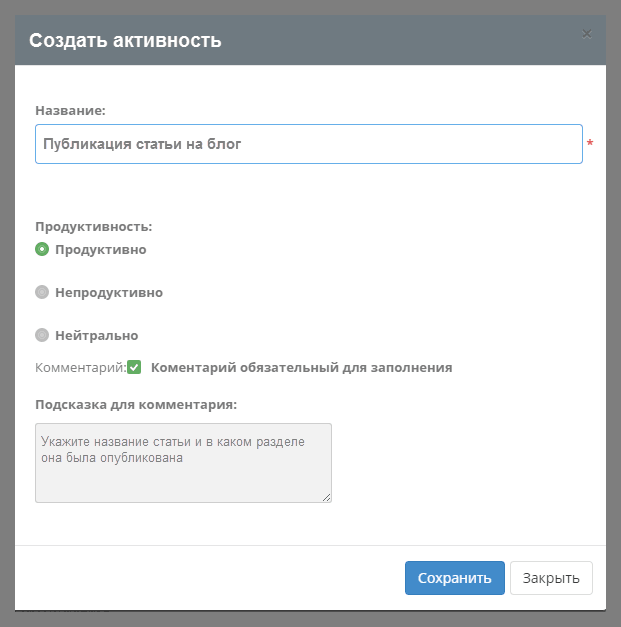
Now, after the period you specified (for example, every hour), the employee will receive a form in which he must indicate what he did for the last hour: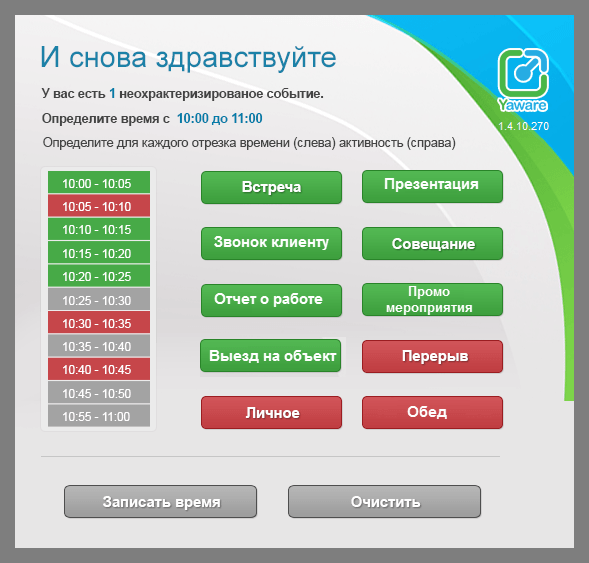
When choosing an activity, an employee can choose several time periods.
To see a list of activities, go to the Reports tab and select Employee Employment: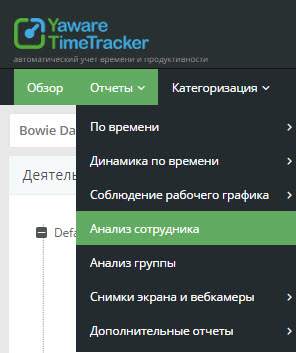
Choose a department, specify the name of the employee (you can choose only one employee) and the day for which you want to receive information:
Now you will see how productive the employee worked and what he did during the day. Hover over the chart for more information. You will see the name of the activity (meeting, meeting, writing an article, filling out documentation) and the employee’s comment on it: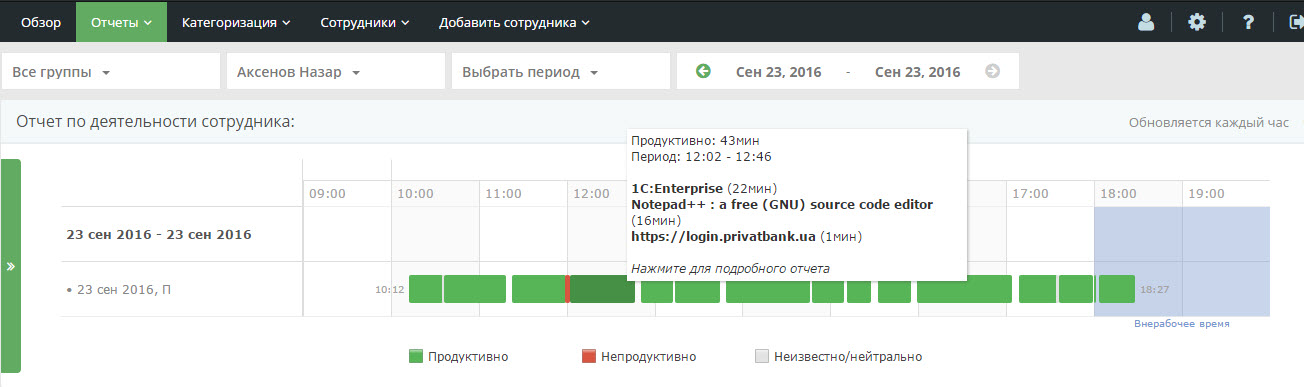
Please note that in the tariff plan “Automatic Time Accounting” there is no division of time by productivity category and the activity report will look like this: