Show the Yaware.TimeTracker icon in the system tray
This setting determines whether Yaware.TimeTracker works in hidden or visible mode. In hidden mode, Yaware.TimeTracker runs unobtrusively and only computer activity is monitored.
In visible mode, employees see an icon in the system tray. It displays current statistics and lets them open detailed work statistics by clicking Statistics.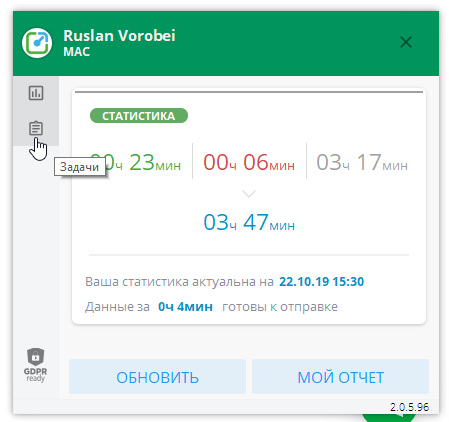
Allow employees to pause monitoring
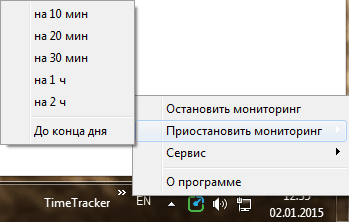
When this feature is enabled, an employee can pause work-time monitoring for 10, 20 or 30 minutes, 1 or 2 hours, or until the end of the day. Monitoring resumes automatically when the selected period ends.
Allow employees to stop monitoring
When this feature is enabled, an employee can right-click the Yaware.TimeTracker icon in the system tray and select Stop monitoring.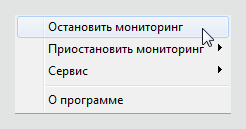 Yaware.TimeTracker will not collect information about computer activity until the employee resumes monitoring by clicking Resume now.
In visible mode, you can also enable offline activity monitoring.
Continuous monitoring
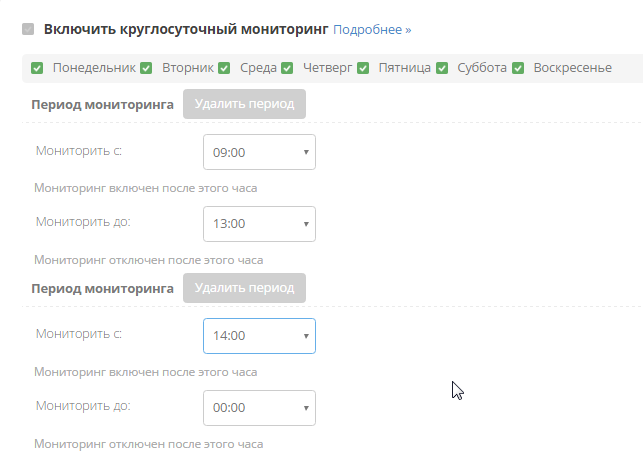
You can enable continuous monitoring, or clear this option and specify the days of the week and hours when employee computer activity should be monitored.
For example, you can configure monitoring only during working hours on working days.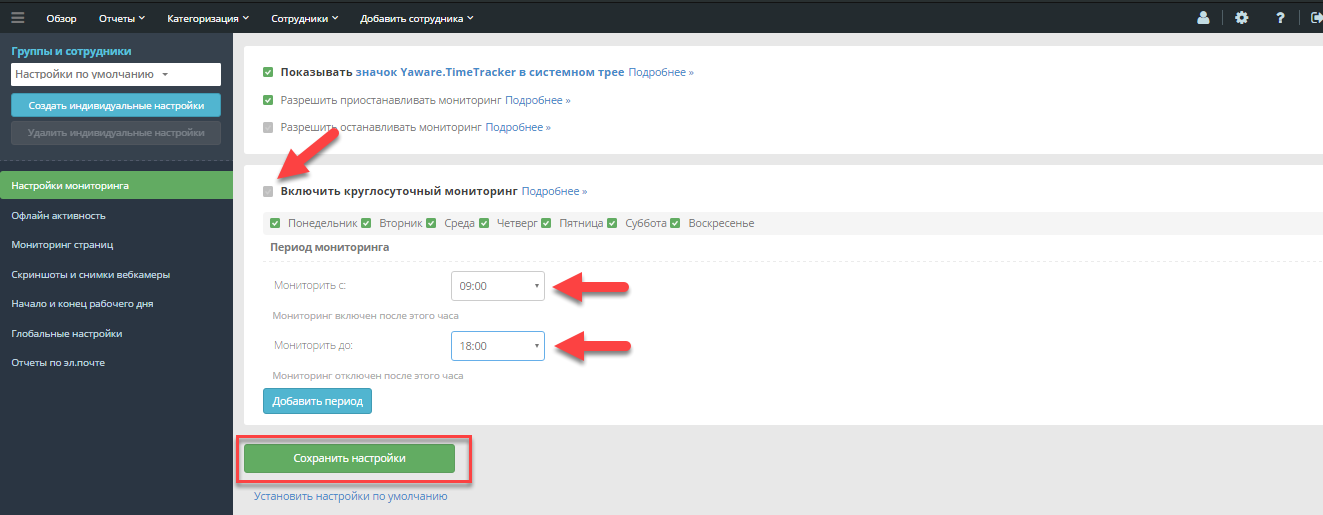
You can also define several monitoring periods and exclude selected intervals during the working day.
For example, you can exclude the lunch break so Yaware.TimeTracker does not monitor computer activity during that period.