
Depending on the platform Yaware is installed. TimeTracker client, updating follows:
- Windows, the client is automatically updated;
- on macOS, the client is updated manually via the client update utility;
- On Linux, the client is updated using the standard system (batch manager) via relocation.
How do I update the client manually (Windows / macOS)?In order to update the client, by last version, you need to open Setup by right clicking on the Yaware icon. TimeTracker in system track
 Then, in the dialog, “Configuration,” select “Update” and click “Check Update” button. If a test is available, you will be presented with a link that allows you to move on to load the file.
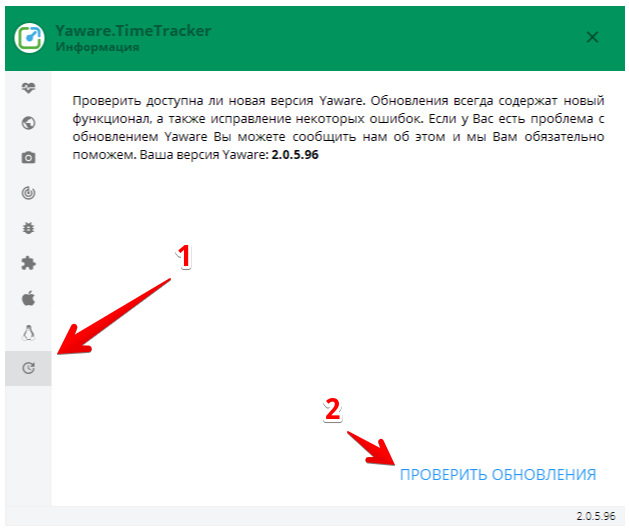 When the file is loaded, run it and follow the instructions of the interpreter.
How do I update the client manually (Linux)?Depending on the batch manager, the client can be updated by running the following platforms:
Debian base
sudo apt-get update
sudo apt-get install yaware
Fedora / CentOS
yum install yaware
or
dnf install yaware
& nbsp;